Table of Content
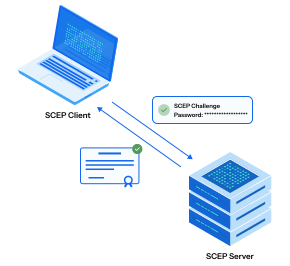
Table of Content
Your team spent three weeks getting NDES working. It broke again last Tuesday after a Windows update. The error logs point to an IIS application pool that stopped, a service account permission that silently changed, and an MSCEP registry key that reverted. The engineer who originally configured it left the company six months ago. The documentation they left says “it works, don’t touch it.”
Meanwhile, 600 managed devices cannot enroll certificates. Your Wi-Fi authentication is down for every new device join. The help desk queue is growing.
This is not a rare story. It is the standard NDES experience in 2025 — a 2003-era Windows Server role being asked to serve as the certificate enrollment backbone for a modern, cloud-first, MDM-managed device fleet.
NDES is not a bad idea. The problem it solves — proxying certificate requests from MDM-managed devices to an internal CA without exposing the CA to the internet — is a real and important problem. NDES just solves it with infrastructure complexity and operational fragility that organizations no longer need to accept.
This guide covers why NDES breaks, what a cloud-native SCEP gateway does differently, and exactly how to migrate from NDES to BastionXP without interrupting a single device’s Wi-Fi or VPN access.
1. What Is NDES — And What Problem Does It Actually Solve?
NDES (Network Device Enrollment Service) is Microsoft’s implementation of SCEP — the Simple Certificate Enrollment Protocol. It is a Windows Server role that sits between MDM-managed devices and an Active Directory Certificate Services (ADCS) CA, proxying certificate enrollment requests so that devices can receive signed certificates without the CA being directly internet-accessible.
The architecture looks like this:
Device → MDM (Intune/Jamf) → NDES (SCEP proxy, Windows Server) → ADCS CA (Windows Server) → Certificate → Device
NDES acts as a Registration Authority (RA) — it validates that the enrollment request is legitimate (via a challenge password), forwards the Certificate Signing Request (CSR) to the ADCS CA, and returns the signed certificate to the device. The CA itself never has to be reachable from outside the network perimeter.
This architecture is sound. The problem is everything required to make it work and keep it working.
2. The Seven Operational Pain Points of NDES
Pain Point 1: The Windows Server Dependency
NDES requires a dedicated Windows Server. Microsoft explicitly warns against installing NDES on the same server as the ADCS CA — doing so creates security and stability problems. So you need at minimum two Windows Servers: one for ADCS, one for NDES.
Both require Windows Server licensing, patching, security hardening, backup, monitoring, and periodic maintenance. For organizations that have moved to cloud-first infrastructure, maintaining two Windows Servers whose sole purpose is certificate proxy infrastructure is an expensive anachronism.
Pain Point 2: Breaking on Windows Updates
NDES is one of the most fragile Windows Server roles in production. Cumulative updates — the routine monthly patches you cannot skip — frequently break NDES in ways that are not immediately obvious:
- The IIS application pool hosting MSCEP stops or enters an error state
- The NDES service account loses permissions it previously had
- The SCEP URL registration in IIS becomes invalid
- The challenge password generation mechanism stops working silently
None of these failures generate a clear alert. The first sign is usually a wave of device enrollment failures surfacing in the MDM console hours after the update was applied.
Recovery requires manual investigation of IIS logs, Windows event logs, MSCEP registry keys, and service account permissions — specialized knowledge that is not widely distributed across IT teams and is difficult to document for repeatable recovery.
Pain Point 3: The Service Account Maze
NDES requires a dedicated service account with a specific, non-obvious set of permissions spanning multiple systems:
- IIS application pool identity
- NDES service logon rights
- Enrollment Agent permissions on the ADCS CA
- Read permissions on the certificate templates
- Network Service access for specific registry keys
One misconfigured permission breaks enrollment for every device — silently, with error messages that do not clearly identify the missing permission. Configuring these permissions correctly requires following a precise sequence of steps, and any deviation causes failures that are difficult to diagnose.
Pain Point 4: The Static Challenge Password
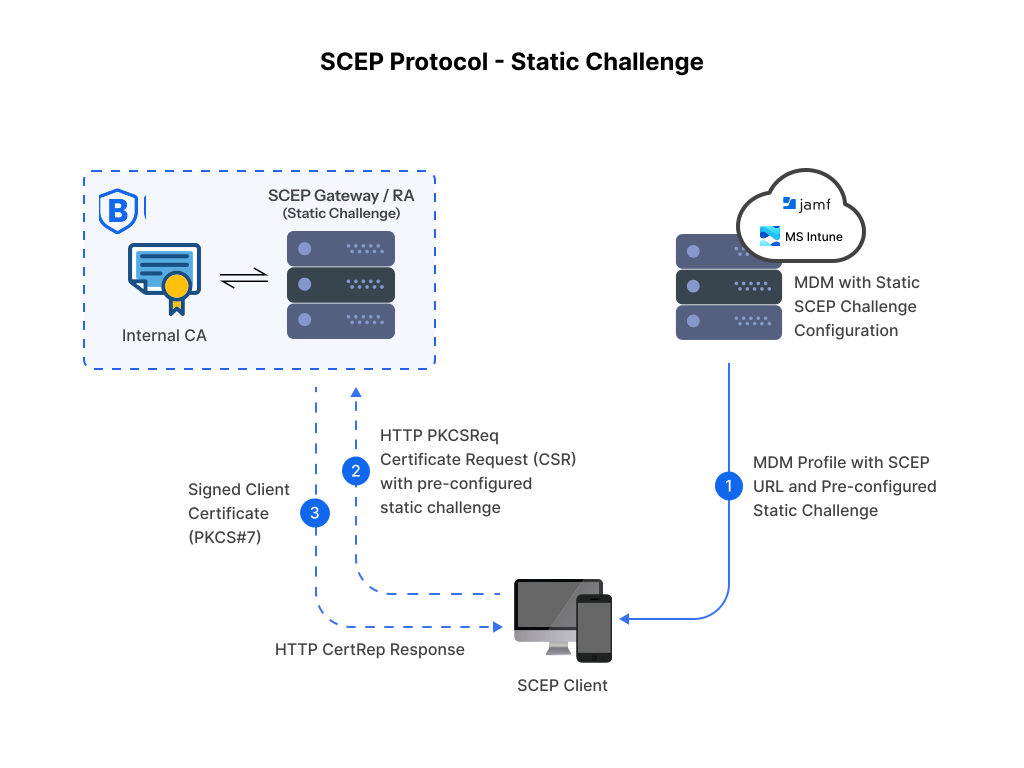
Classic NDES uses a single static challenge password for all device enrollments. This password is embedded in the SCEP configuration profile pushed to every device via MDM. Any device — corporate or personal, managed or rogue — that obtains this password can submit a certificate enrollment request to NDES and receive a signed certificate.
Microsoft’s integration with Intune improved this by introducing a per-request challenge token flow via the Intune Certificate Connector, but this introduces another component with its own installation, configuration, and maintenance requirements.
Pain Point 5: Certificate Template Complexity
ADCS certificate templates must be configured with exact settings for NDES to correctly proxy enrollment requests. The required settings — key usage flags, extended key usage (EKU), subject name format, CSP/KSP designation, issuance policies — are numerous and interconnected. A mismatch between what Intune sends in the CSR and what the ADCS template expects causes enrollment to fail with error messages that do not clearly identify which field is mismatched.
Template misconfiguration is the single most common cause of NDES enrollment failures in Intune environments, and diagnosing it requires expertise in both ADCS and Intune SCEP profile construction.
Pain Point 6: No Cloud Support Without a Connector
NDES is on-premise infrastructure. Organizations that have moved workloads to Azure, AWS, or Google Cloud still need a path from cloud MDM (Intune) back to the on-premise NDES server. The options are:
- A site-to-site VPN or ExpressRoute between cloud and on-premise
- The Microsoft Intune Certificate Connector — software installed on a domain-joined on-premise Windows machine that bridges Intune to NDES
The Intune Certificate Connector is yet another component: it must be installed, domain-joined, kept updated, and monitored. When it stops working, all new certificate enrollments via Intune stop silently.
Pain Point 7: No ACME, No Dynamic SCEP, No Hardware Attestation
NDES speaks only classic SCEP — the version with a static shared challenge password and software-stored keys. It has no support for:
- Dynamic SCEP — per-device, single-use challenge tokens that eliminate the static password vulnerability
- ACME Device Attestation — the
device-attest-01protocol that issues hardware-bound certificates from a device’s Secure Enclave or TPM. Learn more about ACME Device Attestation from our solutions page. - Short-lived certificates — certificates valid for hours rather than years, automatically renewed via ACME
As organizations move toward Zero Trust device identity and hardware-attested credentials, NDES becomes a ceiling rather than a foundation. It cannot grow toward the security model that modern enterprise environments require.
3. What a Cloud-Native SCEP Gateway Does Differently
A cloud-native SCEP gateway replaces the entire NDES + ADCS stack with a single SaaS platform. The architecture becomes:
Device → MDM (Intune/Jamf) → BastionXP SCEP endpoint (cloud) → BastionXP CA (cloud) → Certificate → Device
There is no on-premise infrastructure. No Windows Server. No IIS. No service account. No Intune Certificate Connector. The SCEP endpoint and the CA are the same platform — which eliminates the NDES-to-ADCS proxy layer entirely.
The Registration Authority Model
BastionXP acts as both CA and Registration Authority from the same platform. When a device submits a SCEP enrollment request, BastionXP validates the challenge, enforces enrollment policies, and issues the certificate — all within the same system. There is no separate proxy layer to maintain, no synchronization between two servers, and no permissions configuration spanning multiple Windows roles.
For a detailed explanation of how a modern RA model works, see BastionXP as a modern Registration Authority.
Dynamic SCEP — Eliminating the Static Password
BastionXP supports Dynamic SCEP: when Intune or Jamf deploys a SCEP profile to a device, it calls the BastionXP API to generate a per-device, single-use challenge token for that specific device. The token is tied to the device’s MDM identity, expires within minutes, and cannot be used to enroll any other device.
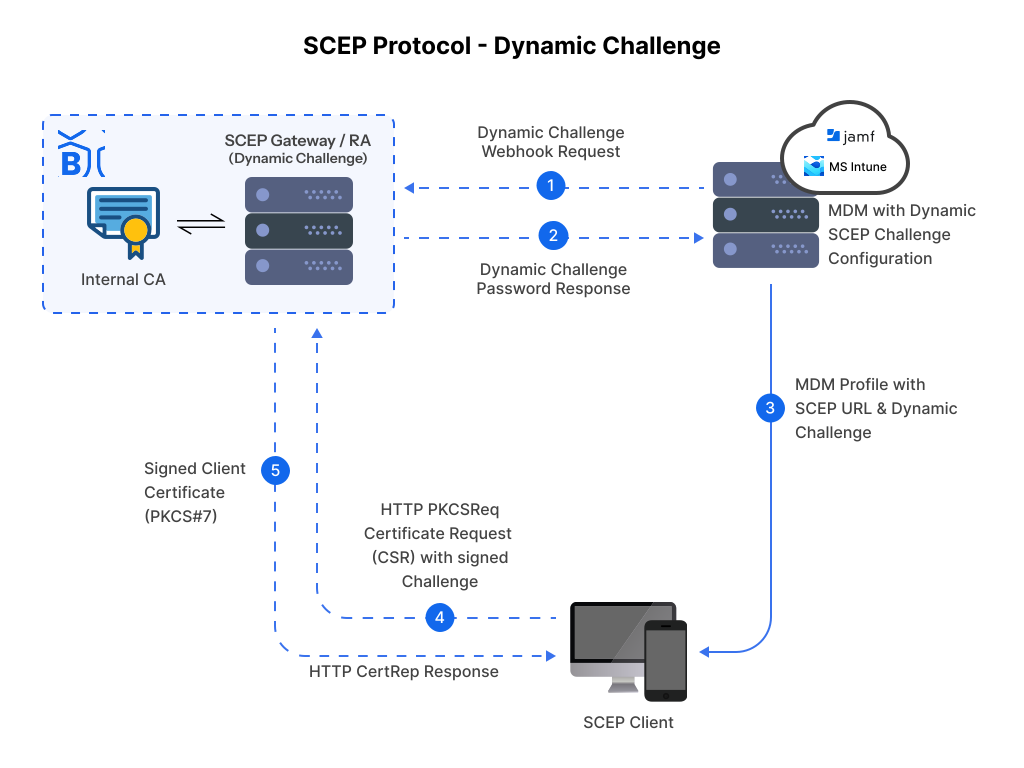
This eliminates the fundamental security weakness of classic NDES — the static shared password that any device can use. See the SCEP gateway guide for a full comparison of classic SCEP, Dynamic SCEP, and ACME.
ACME Device Attestation — Beyond SCEP
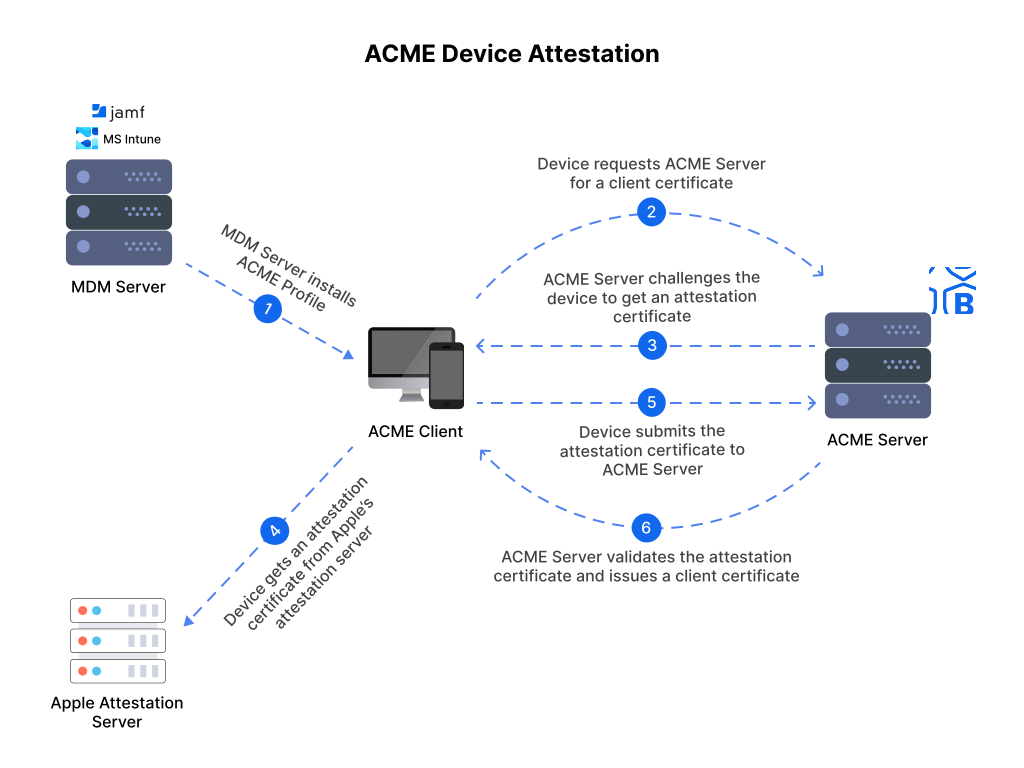
BastionXP’s SCEP endpoint and ACME endpoint can share the same CA. For Apple devices running iOS 16+ or macOS 13+, you can replace the SCEP profile with an ACME profile — the device’s Secure Enclave generates the private key in hardware, produces a cryptographic attestation statement, and BastionXP validates this against Apple’s attestation roots before issuing the certificate.
The result: a certificate whose private key is hardware-bound, non-exportable, and cryptographically verified to belong to a specific, genuine Apple device. NDES cannot produce this. For the full ACME Device Attestation deep dive, see ACME vs SCEP for Zero Trust device identity.
4. NDES vs BastionXP Cloud SCEP — Side-by-Side Comparison
| Dimension | Microsoft NDES + ADCS | BastionXP Cloud SCEP |
|---|---|---|
| Infrastructure required | 2 Windows Servers + IIS | None — SaaS |
| On-premise footprint | Mandatory | Zero |
| Intune Certificate Connector | Required | Not required |
| Setup time | Days to weeks | Under 30 minutes |
| Breaks on Windows update | Frequently | Never |
| Static challenge password | Yes (default) | No — per-device Dynamic SCEP |
| ACME Device Attestation | Not supported | Full support (iOS 16+, macOS 13+, Windows TPM) |
| Hardware-bound keys (Secure Enclave / TPM) | Not supported | Yes |
| Short-lived certificates | Not supported | Yes (ACME-powered, hours to days) |
| Multi-site / global availability | Complex (replication needed) | Native (cloud CDN) |
| High availability | Manual clustering required | Built-in |
| CRL / OCSP for revocation | ADCS publishes; requires CDP availability | BastionXP publishes; always available |
| Built-in RADIUS for EAP-TLS | No — separate NPS required | Yes — built-in |
| MDM integrations | Intune (via Connector), Jamf (direct) | Intune, Jamf, Workspace ONE, Kandji |
| Maintenance engineering | High — specialized Windows PKI knowledge | None |
| Cost model | Windows Server licensing + engineering time | Subscription |
5. Migration Path — Replacing NDES Without Breaking Existing Devices
This is the section most NDES migration guides skip. The risk in any certificate infrastructure migration is disrupting devices that are currently working. The BastionXP migration is designed to be zero-downtime: NDES and BastionXP run in parallel, devices migrate gradually as they renew, and NDES is decommissioned only after every device has a BastionXP-issued certificate.
Phase 1: Stand Up BastionXP in Parallel (Zero Risk)
Nothing changes for existing devices in this phase.
- Create a BastionXP account and navigate to Certificate Authority → Create CA
- Configure the CA subject (organization, country), key algorithm, and validity period
- Enable the SCEP endpoint — BastionXP generates a unique SCEP URL for your organization
- Enable the ACME endpoint if you plan to migrate Apple devices to hardware attestation
- Note the BastionXP CA root certificate — you will distribute this to devices and RADIUS in later phases
At this point, BastionXP is running but no device is using it. NDES continues to function exactly as before.
Phase 2: Configure RADIUS to Trust Both CAs Simultaneously
This is the critical step that enables zero-downtime migration. Your RADIUS server must trust both the existing ADCS CA (for NDES-issued certificates) and the new BastionXP CA (for BastionXP-issued certificates) simultaneously.
- Export the BastionXP CA root certificate from the BastionXP portal
- Import it into your RADIUS server’s trusted CA store alongside the existing ADCS root
- Verify that RADIUS is configured to accept EAP-TLS certificates from either CA
- Test with a manually enrolled device — confirm BastionXP-issued certificate authenticates successfully
From this point forward, devices can authenticate with either ADCS-issued or BastionXP-issued certificates. The migration can proceed at any pace without disrupting existing devices.
Phase 3: Create a Parallel SCEP Profile in Intune (Pilot Group)
- In Intune, create a new SCEP certificate profile pointing to the BastionXP SCEP endpoint URL
- Configure the subject format, SAN, key usage, and validity period to match your existing NDES profile (or improve them — BastionXP makes this straightforward)
- Create a new Wi-Fi profile referencing the BastionXP certificate profile, targeting the same corporate SSID
- Assign both profiles to a pilot device group — 5 to 10 devices in a dedicated AAD group
Pilot devices receive BastionXP-issued certificates and connect to corporate Wi-Fi using those certificates. Verify in the BastionXP portal that certificates were issued and in your RADIUS logs that EAP-TLS authentications are succeeding.
Phase 4: Roll Out to the Full Device Fleet
Once the pilot validates successfully:
- Expand the Intune profile assignments from the pilot group to all device groups
- Devices receive BastionXP SCEP profiles at the next MDM check-in (typically within hours)
- Each device performs SCEP enrollment against BastionXP in the background and installs the new certificate
- Existing NDES-issued certificates remain valid — devices with NDES certificates continue to authenticate normally until their certificates are superseded by BastionXP certificates
Monitor in the BastionXP portal: the Certificates → Issued view shows every device that has successfully enrolled. Track progress across the fleet.
Phase 5: Upgrade Apple Devices to ACME Device Attestation (Optional but Recommended)
For corporate-owned Apple devices running iOS 16+ or macOS 13+, this phase delivers the strongest available device identity — hardware-bound certificates verified against Apple’s attestation roots.
- In Jamf or Intune, create an ACME certificate profile pointing to the BastionXP ACME endpoint
- Scope the profile to Apple devices running iOS 16+ / macOS 13+ (use a smart group or dynamic device group filtered by OS version)
- Create an updated Wi-Fi profile referencing the ACME certificate profile
- Deploy — devices re-enroll via
device-attest-01, private keys are generated in the Secure Enclave and never leave hardware
For the complete iOS ACME enrollment walkthrough, see ACME certificate enrollment for iOS and iPadOS. For a full product overview, see the BastionXP ACME Device Attestation solution page.
Phase 6: Decommission NDES
Only proceed once you have confirmed — via the BastionXP portal and RADIUS logs — that every device in the fleet is authenticating with a BastionXP-issued certificate.
- Remove the NDES SCEP profile assignments from Intune and Jamf
- Uninstall the Intune Certificate Connector from the on-premise machine
- Retire the NDES Windows Server role (or decommission the VM entirely)
- Important: Keep the ADCS CA’s CRL Distribution Point (CDP) accessible until all NDES-issued certificates have reached their natural expiry date. RADIUS and other relying parties need to be able to check CRL and OCSP revocation status for certificates issued by the old CA until they are fully replaced.
- Once the last NDES-issued certificate has expired, the ADCS CA and its CDP can be decommissioned
6. Configuring BastionXP SCEP for Microsoft Intune
Step 1 — Create the SCEP Certificate Profile
In Intune (Devices → Configuration → Create profile → Windows 10 or iOS/macOS → SCEP certificate):
- SCEP server URL: Your BastionXP SCEP endpoint (e.g.,
https://ca.bastionxp.com/scep/your-org-id) - Certificate type: Device
- Subject name format:
CN={{DeviceName}}orCN={{AAD_Device_ID}} - Subject alternative name: Device serial number or UPN as a SAN entry
- Certificate validity period: As configured in BastionXP CA
- Key storage provider: Software KSP (standard SCEP) or TPM KSP (for hardware binding on Windows with TPM)
- Key usage: Digital signature, Key encipherment
- Extended key usage: Client authentication (1.3.6.1.5.5.7.3.2)
- SCEP challenge: Retrieved from BastionXP portal → SCEP Settings
Step 2 — Create the Wi-Fi Profile
In Intune (Devices → Configuration → Wi-Fi profile):
- SSID: Your corporate wireless network name
- Security type: WPA2-Enterprise
- EAP type: EAP-TLS
- Client certificate for client authentication: Reference the BastionXP SCEP certificate profile created above
- Trusted server certificate names: Your BastionXP RADIUS server hostname
- Root certificate for server validation: Upload the BastionXP CA root certificate
Step 3 — Assign and Deploy
Assign both profiles to the same device group. Intune delivers both profiles together — the certificate profile is processed first, the Wi-Fi profile uses the installed certificate automatically.
7. Configuring BastionXP SCEP for Jamf Pro
Step 1 — Create a Configuration Profile with SCEP + Wi-Fi Payloads
In Jamf Pro (Computers or Devices → Configuration Profiles → New):
SCEP Payload:
- URL: BastionXP SCEP endpoint
- Name: Your certificate CN (use
$SERIALNUMBERor$COMPUTERNAMEfor device-specific values) - Challenge: From BastionXP SCEP settings
- Key size: 2048 or 4096 bit
- Use as digital signature: Checked
- Use for key encipherment: Checked
Wi-Fi Payload (in the same profile):
- SSID: Corporate network name
- Security: WPA2 Enterprise
- Protocol: EAP-TLS
- Identity certificate: Reference the SCEP payload above
- Trust: Upload BastionXP CA root certificate; specify RADIUS server hostname for certificate name validation
Step 2 — Scope and Deploy
Scope the configuration profile to your target smart group. Jamf delivers the profile, the SCEP enrollment runs in the background, and the Wi-Fi supplicant uses the installed certificate automatically.
8. What Happens to Existing ADCS Certificates During Migration?
This is the question that causes the most anxiety in NDES migrations — and the answer is reassuring.
Existing NDES/ADCS-issued certificates are not invalidated by the migration. They remain cryptographically valid until their natural expiry date. Because you imported the BastionXP CA root into RADIUS (Phase 2) without removing the ADCS CA root, RADIUS continues to trust both CAs.
The migration is a gradual replacement, not a hard cutover:
- Devices with NDES certificates: continue to authenticate normally until the device receives a BastionXP profile and re-enrolls
- Devices that have re-enrolled with BastionXP: authenticate using the BastionXP certificate; the NDES certificate sits unused in the keystore until it expires
- All devices: uninterrupted network access throughout
The only post-migration consideration is the ADCS CRL Distribution Point. Even after NDES is decommissioned, relying parties that encounter an old NDES-issued certificate (during its remaining validity period) need to be able to check its revocation status. Keep the ADCS CDP accessible until confirmed that no NDES-issued certificates remain in active use.
9. Common NDES Migration Mistakes — And How to Avoid Them
| Mistake | Consequence | How to Avoid |
|---|---|---|
| Removing ADCS root from RADIUS before all devices have migrated | Devices with NDES-issued certs lose Wi-Fi access immediately | Keep both CA roots in RADIUS trusted store until migration is 100% confirmed in BastionXP portal |
| Mismatching certificate CN/SAN format between NDES and BastionXP profiles | RADIUS authorization policy rejects BastionXP certs (wrong attribute format) | Test pilot group first; validate RADIUS access logs show correct CN/SAN values before fleet rollout |
| Deploying ACME profile to iOS devices running < iOS 16 | ACME payload silently fails; device has no certificate | Filter ACME profiles to iOS 16+ smart group; use SCEP profile for older OS versions |
| Decommissioning NDES CDP before all old certs have expired | Relying parties cannot check revocation for old NDES certs; may cause auth failures in strict-revocation configs | Keep ADCS CDP accessible (or mirror it) until the last NDES cert’s expiry date has passed |
| Forgetting the RADIUS server certificate is signed by ADCS | RADIUS server cert expires post-migration; EAP-TLS breaks for everyone | Issue a new RADIUS server certificate from BastionXP CA before decommissioning ADCS; update the trust anchor in MDM Wi-Fi profiles |
| Not testing RADIUS logs during pilot | Enrollment appears to succeed but RADIUS is still rejecting BastionXP certs | Check RADIUS authentication logs explicitly for Access-Accept (not just checking Wi-Fi connectivity, which may fall back) |
| Rushing to decommission NDES before full fleet confirmation | Some devices missed the profile update and still need NDES for enrollment | Use BastionXP portal certificates view to confirm 100% of expected devices have enrolled before decommissioning |
10. Frequently Asked Questions
Do I need to keep ADCS running after migrating to BastionXP?
Not for new certificate issuance — BastionXP is the CA from Phase 1 onward. You should keep the ADCS CRL Distribution Point accessible until all ADCS-issued certificates have naturally expired (their validity period has passed). After that, ADCS can be fully decommissioned.
Can BastionXP and NDES run simultaneously during migration?
Yes — this is the design of the migration. Both operate independently. RADIUS trusts both CAs. Devices enroll via whichever SCEP profile they have been assigned. There is no conflict between the two systems operating in parallel.
What happens to certificates already issued by NDES?
They remain valid until their natural expiry date. RADIUS continues to accept them as long as the ADCS CA root remains in the trusted store. No device loses connectivity during migration.
Does BastionXP work with on-premise RADIUS (NPS / FreeRADIUS)?
Yes. BastionXP includes a built-in cloud RADIUS server, but it also works with any 802.1X-compliant RADIUS server — Microsoft NPS, FreeRADIUS, Cisco ISE, Aruba ClearPass. Import the BastionXP CA root certificate into your existing RADIUS server’s trusted CA store and it will validate BastionXP-issued certificates correctly.
Is BastionXP compliant with the same standards as NDES/ADCS?
Yes. BastionXP implements standard SCEP (RFC 8894), ACME (RFC 8555), X.509 certificates (RFC 5280), EAP-TLS (RFC 5216), and CRL/OCSP (RFC 5280/6960). Certificates issued by BastionXP are standard X.509 certificates — indistinguishable from ADCS-issued certificates to any relying party.
How long does the migration take?
Phase 1 (BastionXP setup) takes under 30 minutes. Phase 2 (RADIUS trust) takes an hour or less. Phase 3 (pilot profile creation and testing) typically takes one to two days. Phase 4 (fleet rollout) depends on MDM check-in cadence — most fleets complete enrollment within 24 to 48 hours of profile deployment. Phase 6 (NDES decommission) can happen once the BastionXP portal confirms full fleet enrollment.
Can I migrate Windows devices and Apple devices separately?
Yes — and this is the recommended approach. Start with whichever platform is causing more NDES pain. Windows devices typically stay on SCEP (with optional TPM key storage). Apple devices are candidates for ACME Device Attestation (iOS 16+, macOS 13+), which can be rolled out as a separate phase after SCEP migration is complete.
What if some devices cannot reach the BastionXP cloud endpoint?
BastionXP’s SCEP and ACME endpoints are internet-accessible SaaS — no VPN or private network connection required. Devices on corporate Wi-Fi, cellular, or any internet connection can enroll. If specific devices are on isolated networks without internet access, configure network egress rules to allow HTTPS to BastionXP endpoints, or use BastionXP’s on-premise connector option for air-gapped environments.
Conclusion: Stop Maintaining NDES. Start Issuing Certificates.
NDES solved the right problem in 2003. In 2025, the cost of running it — two Windows Servers, one Certificate Connector, one service account across multiple permission systems, manual recovery after every cumulative update, and a ceiling on security capability that stops at classic SCEP — is a tax that modern organizations no longer need to pay.
BastionXP replaces NDES, ADCS, the Intune Certificate Connector, and NPS with a single cloud-native platform: CA, SCEP gateway, Dynamic SCEP, ACME Device Attestation, and RADIUS in one place, no Windows Server required.
The migration is designed to be zero-risk. Run both systems in parallel, validate on a pilot group, roll out fleet-wide, decommission NDES only after confirmation. No user-visible interruption. No help desk tickets. No race against a maintenance window.
When you are done, your certificate infrastructure looks like this: open the BastionXP portal, see every issued certificate, click Revoke when a device is lost, and watch the next EAP-TLS handshake for that device fail — within seconds, without touching a Windows Server.
Try BastionXP CA and SCEP for free — or read the complete SCEP gateway guide to understand the certificate delivery layer before you start the migration.
About BastionXP
BastionXP is a cloud-native private PKI CA and device identity management platform that eliminates passwords and shared secrets by issuing hardware-attested certificates to mobile devices and laptops. Secure access to your Wi-Fi, VPN, and SaaS applications in your enterprise network. Replace legacy SCEP with automated ACME Device Attestation. No shared secrets. Zero credential theft. Learn more about BastionXP →