Table of Content

Table of Content
Your office has a Wi-Fi network with a password that has not changed in three years. Forty-seven current employees know it. So does every contractor, every visitor, and every former employee who was never asked to forget it.
Last Tuesday someone’s personal laptop connected to the same network as your engineering team’s machines — and nobody noticed.
This is not a hypothetical scenario.
It is the actual security posture of most organizations that rely on a shared Wi-Fi passphrase, and it is exactly the problem that WPA2-Enterprise was designed to eliminate.
WPA2-Enterprise replaces the shared password with individual authentication — every device proves its own identity before touching the network, and revoking one compromised device does not require changing anything for anyone else.
When a contractor leaves, you remove their access. When a laptop is stolen, you block it at the network layer within seconds. The rest of the organization keeps working.
This guide covers everything an IT administrator needs to know: how WPA2-Enterprise and 802.1X work, which EAP protocol to choose, how to deploy the stack, and how BastionXP collapses the traditionally complex CA + RADIUS + MDM integration into a single platform.
What is WPA2-Enterprise?
WPA2-Enterprise is the enterprise mode of Wi-Fi Protected Access 2 (WPA2), the wireless security standard defined in IEEE 802.11i. The “WPA2” part describes the encryption layer — AES-CCMP — that protects data in transit over the air. The “Enterprise” part describes how authentication works: instead of a single shared passphrase, authentication is handled by the IEEE 802.1X framework, which ties every connection to an individual device or user identity verified by a central authentication server.
The distinction matters because encryption and authentication are separate concerns. WPA2 gives you confidentiality — nobody can read the data flying through the air. 802.1X gives you access control — only the right devices can get onto the network in the first place.
Without 802.1X, encryption alone is insufficient. If every device connects with the same pre-shared key, the encryption only protects against outsiders. It does nothing to stop a device that already knows the key — a personal laptop, an unpatched machine, a device brought in by a visitor — from reaching your internal resources.
WPA2-Enterprise, with 802.1X authentication, solves this. Every device must prove its identity. Every connection is logged. Every device can be individually blocked without disrupting anyone else.
WPA2-Personal vs WPA2-Enterprise:
The four wireless security modes are often conflated. Understanding what each one does — and does not — protect against makes the choice straightforward.
Learn the differences in security posture, control, and when to use each.
WPA2-Personal (PSK): Shared Password, Shared Risk
WPA2-Personal uses a Pre-Shared Key (PSK) — a single password that every connecting device must know. The over-the-air traffic is encrypted, but the security model has one structural problem: the password is the gate. Anyone who knows it gets full network access, regardless of who they are or what device they are using.
There is no mechanism to distinguish between a fully patched corporate laptop and a personal device with no endpoint protection. There is no per-device revocation — changing the password revokes everyone, which means the password never gets changed.
When it is appropriate: Home networks, small offices with no sensitive data, guest networks where anyone who walks in should have access.
WPA3-Personal (SAE): Better Cryptography, Same Identity Problem
WPA3-Personal replaces the PSK handshake with Simultaneous Authentication of Equals (SAE), which is resistant to offline dictionary attacks and provides forward secrecy. The cryptography is meaningfully stronger. The identity model is identical — it is still a shared passphrase, still no per-device access control, still no enterprise identity integration.
When it is appropriate: The same scenarios as WPA2-Personal, with better cryptography. Not appropriate for organizations that need individual device access control.
WPA2-Enterprise: Per-Device Identity and Individual Revocation
WPA2-Enterprise eliminates the shared password entirely. Each device authenticates with its own credential — a username and password, or a device certificate — validated by a RADIUS server against a corporate identity store. When a device is compromised, lost, or decommissioned, an administrator revokes that device’s access and only that device is affected.
When it is appropriate: Any organization with more than a handful of employees, any network that touches sensitive data, any environment with a compliance requirement (SOC 2, ISO 27001, HIPAA, PCI DSS all expect access control at the device level).
WPA3-Enterprise: Stronger Encryption, Same 802.1X Architecture
WPA3-Enterprise applies the same 802.1X authentication framework as WPA2-Enterprise, but mandates a stronger cipher suite (192-bit security) and requires Protected Management Frames (PMF). The authentication logic — RADIUS server, EAP protocol, identity store, certificate PKI — is architecturally identical to WPA2-Enterprise.
When it is appropriate: New infrastructure deployments where all access points and devices support WPA3. For existing WPA2-Enterprise environments, the security benefit of upgrading is incremental — the bigger gains come from moving to certificate-based EAP-TLS authentication regardless of WPA version.
WPA2/3-Personal: Shared password, no per-device identity, no revocation. Fine for home networks.
WPA2/3-Enterprise: Individual credentials per device, RADIUS-backed, per-device revocation. Required for any organization that takes network security seriously.
Comparison Summary
| Feature | WPA2-Personal (PSK) | WPA3-Personal (SAE) | WPA2-Enterprise | WPA3-Enterprise |
|---|---|---|---|---|
| Authentication | Shared password | Shared password (SAE) | Per-device (802.1X) | Per-device (802.1X) |
| Encryption | AES-CCMP (128-bit) | AES-CCMP (128-bit) | AES-CCMP (128-bit) | AES-GCMP (192-bit) |
| Per-device identity | No | No | Yes | Yes |
| Per-device revocation | No | No | Yes | Yes |
| RADIUS server required | No | No | Yes | Yes |
| Certificate / PKI support | No | No | Yes (EAP-TLS) | Yes (EAP-TLS) |
| Offline dictionary attack resistance | No | Yes (SAE) | Yes | Yes |
| Forward secrecy | No | Yes | Yes (with EAP-TLS) | Yes |
| Evil Twin protection | No | No | Yes (EAP-TLS mutual auth) | Yes (EAP-TLS mutual auth) |
| Protected Management Frames (PMF) | Optional | Required | Optional | Required |
| Compliance-ready (SOC 2, HIPAA, PCI) | No | No | Yes | Yes |
| Best for | Home / small office | Home / small office | Corporate networks | New enterprise deployments |
The Four Components of 802.1X Authentication
802.1X is a three-party protocol. Before a device can send a single byte of regular network traffic, it must pass an authentication handshake involving three actors — the device itself, the network device it connects to, and a central authentication server. A fourth element, the identity store, sits behind the server.
The Supplicant: The 802.1X Software Stack on Every Device
The supplicant is software on the client device that speaks the EAP (Extensible Authentication Protocol). It presents the device’s credential — a username/password, token, or certificate — in response to the network’s challenge.
Every major OS includes a built-in 802.1X supplicant: macOS and iOS (native, configurable via MDM profiles), Windows (native, configurable via Group Policy or Intune), Android (native, configurable via MDM), and Linux (wpa_supplicant).
When EAP-TLS with MDM-delivered certificates is properly configured, the supplicant operates entirely invisibly. The device connects to Wi-Fi and the user sees nothing — no prompt, no password field. The supplicant presents the device certificate automatically, the handshake completes in milliseconds.
The Authenticator: How Your Access Point Enforces the 802.1X Gate
The authenticator is the access point, managed switch, or wireless controller the device connects to. Despite the name, it does not evaluate credentials. It enforces the gate.
When a device connects, the authenticator places it in an unauthenticated state — EAP messages only, no regular traffic. It relays the EAP conversation between the supplicant and the RADIUS server. Once the RADIUS server responds with Access-Accept, the port opens. Access-Reject, and the device stays blocked.
The authenticator also processes RADIUS attributes returned by the server. The most commonly used is VLAN assignment — the RADIUS server instructs the AP to place an authenticated device into a specific VLAN based on device type, user role, or certificate attributes. Corporate devices land in the corporate VLAN. BYOD lands in a restricted guest VLAN. IoT lands in an isolated segment. All automatically at authentication time.
WPA2-Enterprise is supported by all major enterprise AP vendors: Cisco, Aruba, Meraki, Ruckus, and Ubiquiti, among others. RADIUS configuration is the same regardless of AP vendor.
The RADIUS Server: Where Authentication Decisions Are Made
The RADIUS server is the decision-maker. It receives the device’s credential, validates it against the identity store, evaluates configured policies, and returns either Access-Accept (with optional VLAN and attribute assignments) or Access-Reject.
In a password-based deployment, the RADIUS server checks the credential against Active Directory or LDAP. In a certificate-based deployment, it validates the certificate chain — confirming the certificate was signed by a trusted CA, has not expired, and has not been revoked.
The RADIUS server is where Zero Trust policy is enforced. Certificate attributes embedded in the client certificate — device serial number, user UPN, device type — can be evaluated against policies that determine VLAN placement, resource access scope, and whether the device is allowed to connect at all.
BastionXP includes a built-in RADIUS server. There is no FreeRADIUS to install, no Windows NPS to configure. The BastionXP RADIUS is pre-configured to trust BastionXP-issued certificates, and access policies are managed through the BastionXP portal.
The Identity Store: Active Directory, LDAP, or Certificate Authority
The identity store is the system the RADIUS server consults to validate the credential:
- For password-based EAP (PEAP, EAP-TTLS): Active Directory or LDAP. The RADIUS server checks the submitted username and password against the directory.
- For certificate-based EAP-TLS: The Certificate Authority. The RADIUS server validates the certificate chain — the CA’s signature on the certificate is itself the proof of identity. No directory lookup required.
- For hybrid deployments: The RADIUS server can validate the certificate chain via CA trust and simultaneously check the user account status in Active Directory — ensuring a valid certificate belonging to a terminated employee’s device is still rejected if the account is disabled.
With BastionXP, the CA and RADIUS server are the same platform. The RADIUS server is pre-configured to trust all certificates issued by the BastionXP CA — no manual import, no synchronization lag.
EAP Protocol Options for WPA2-Enterprise: EAP-TLS, PEAP, and EAP-TTLS Compared
Choosing the right EAP protocol is the most consequential decision in a WPA2-Enterprise deployment. It determines your security posture, PKI requirements, and user experience.
EAP-TLS: Certificate-Based Mutual Authentication
EAP-TLS is the strongest EAP method (the Gold Standard) available and the only one that fully satisfies Zero Trust device identity requirements. It works entirely on certificates — no passwords, no shared secrets. For a complete protocol walkthrough and deployment guide, see the EAP-TLS authentication guide.
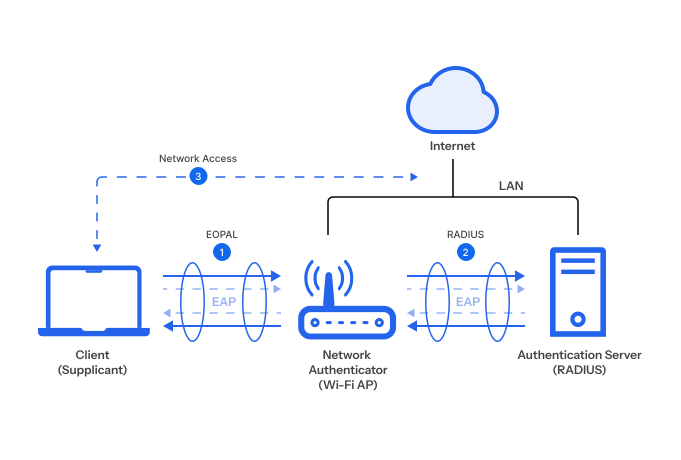
At the start of every EAP-TLS connection, two things happen simultaneously:
The network proves it is the real network. The RADIUS server presents its own certificate, signed by your CA. The device checks this against its trusted CA root. If the certificate does not match — if this is a rogue access point — the device refuses to connect. Evil Twin attacks are structurally impossible.
The device proves it is a managed corporate asset. The device presents its client certificate, also signed by your CA. The RADIUS server validates the chain. Only devices enrolled through MDM and issued a valid certificate can connect. Personal devices are excluded — not because they lack a password, but because they were never issued a certificate.
Both sides verify each other before any traffic flows. This is mutual TLS authentication applied to Wi-Fi, and it closes every gap that password-based protocols leave open.
PKI requirement: EAP-TLS requires a CA to issue certificates to both the RADIUS server and client devices. BastionXP CA handles both, distributing client certificates via SCEP, Dynamic SCEP, or ACME through your MDM.
User experience: Completely invisible. No prompts. No passwords.
PEAP-MSCHAPv2: Password-Based Enterprise Wi-Fi and Its Security Limits
PEAP with MSCHAPv2 is the most widely deployed EAP method in the world — primarily because it requires no client-side PKI. The device sends its username and password inside an encrypted outer TLS tunnel.
The critical weakness: most devices do not validate the RADIUS server’s certificate by default. A rogue access point can present any certificate and most supplicants will accept it, proceed with the EAP handshake, and surrender the domain credential to the attacker. This is the Evil Twin attack, and it requires nothing more than a laptop and freely available software.
When it is still appropriate: Environments where deploying PKI is genuinely not feasible, or for guest/BYOD segments with limited network access. In all cases, enforce strict RADIUS server certificate validation via MDM-delivered profiles.
EAP-TTLS: Flexible Inner Authentication with a TLS Tunnel
EAP-TTLS is structurally similar to PEAP — credential sent inside an outer TLS tunnel — but the inner protocol is flexible: PAP, CHAP, MSCHAPv2, or another EAP method. This is useful for non-AD identity stores that do not support MSCHAPv2. The same server certificate validation weakness applies as with PEAP.
EAP Protocol Comparison Summary
| Feature | EAP-TLS | PEAP-MSCHAPv2 | EAP-TTLS |
|---|---|---|---|
| Credential type | Device certificate | Username + password | Username + password |
| Client certificate required | Yes | No | No |
| Server certificate required | Yes | Yes (often ignored) | Yes (often ignored) |
| Mutual authentication | Yes — both sides verified | No — device only | No — device only |
| PKI / CA required | Yes | No | No |
| Evil Twin / rogue AP protection | Yes | No (if server cert not validated) | No (if server cert not validated) |
| Phishing resistance | Yes — no password exists | No | No |
| Private key exportable | No (Secure Enclave / TPM) | N/A | N/A |
| User experience | Invisible — fully automated | Password prompt at connection | Password prompt at connection |
| Affected by AD password rotation | No | Yes | Yes |
| Zero Trust compatible | Yes | No | No |
| Deployment complexity | Moderate (needs MDM + CA) | Low | Low–Moderate |
| Best for | Corporate managed devices | Environments without PKI | Non-AD identity stores |
EAP-TLS: Best choice if you have an MDM and can distribute device certificates. Phishing-proof, mutual, hardware-bound.
PEAP-MSCHAPv2: Acceptable if PKI is not yet feasible — enforce strict RADIUS server certificate validation in every profile.
EAP-TTLS: Use when you need password-based auth against a non-AD directory that does not support MSCHAPv2.
Three Authentication Methods for Enterprise Wi-Fi: Passwords, Tokens, and Certificates
Password-Based Wi-Fi Authentication: How It Works and Why It Has a Ceiling
In PEAP or EAP-TTLS deployments, the device presents a username and password validated against Active Directory or LDAP. Straightforward to deploy, compatible with existing AD credentials, and familiar to help desk staff.
The ceiling is structural: passwords authenticate the user, not the device. A valid domain credential on a personal, unmanaged laptop with no endpoint protection grants exactly the same Wi-Fi access as the same credential on a hardened corporate device. In a Zero Trust model, this is a fundamental gap — the device is as important an identity signal as the user.
Token and MFA-Based Authentication: Adding a Second Factor to Enterprise Wi-Fi
OTP tokens, hardware keys, or push-based MFA add a second factor to password-based Wi-Fi — the attacker needs both the stolen password and the second factor to authenticate.
This improves user identity assurance meaningfully. But it still does not verify the device, and it adds friction at every reconnection — users connect to Wi-Fi multiple times a day, and requiring an MFA approval each time produces complaints and policy workarounds faster than you might expect.
Certificate-Based Authentication: Invisible, Phishing-Proof, and Built for Zero Trust
Certificate-based EAP-TLS is the only Wi-Fi authentication method that simultaneously delivers stronger security and a better user experience.
Security properties:
- Phishing-proof: No password to steal, phish, or share. The private key never leaves the device.
- Device-specific: Each device has its own certificate. Revoking one device does not affect any other.
- Mutual authentication: The device verifies the network’s identity — Evil Twin attacks cannot work because there are no credentials to harvest.
- Continuously verified: BastionXP’s short-lived ACME certificates re-attest device integrity at every renewal, not just at enrollment.
User experience: Invisible. The device opens and connects — no password prompt, no MFA push, no certificate warning. The certificate is managed entirely by the infrastructure.
Delivery: Certificates are distributed via SCEP, Dynamic SCEP, or ACME Device Attestation through your MDM — pushed automatically during enrollment, renewed automatically before expiry, revoked instantly when a device is decommissioned.
How to Deploy WPA2-Enterprise with 802.1X: Step-by-Step Setup Guide
What You Need
- Access points with WPA2-Enterprise / 802.1X support (Cisco, Aruba, Meraki, Ruckus, Ubiquiti, or any 802.1X-compliant AP)
- A RADIUS server — BastionXP’s built-in RADIUS, or FreeRADIUS / Windows NPS for existing deployments
- A Certificate Authority — BastionXP CA (cloud-native, no Windows Server required)
- An MDM — Intune, Jamf, Workspace ONE, or Kandji for certificate and Wi-Fi profile delivery
Step 1 — Set Up BastionXP CA
Log in to the BastionXP portal. Navigate to Certificate Authority → Create CA. Configure the CA name, subject (organization, country), key algorithm (RSA 4096 or EC P-384), and root certificate validity. BastionXP generates the CA hierarchy automatically and makes the root certificate available for download and RADIUS import.
Step 2 — Configure the BastionXP RADIUS Server
In the BastionXP portal, navigate to RADIUS → Configuration. BastionXP RADIUS is pre-configured to trust all certificates issued by your BastionXP CA — no manual CA import required. Configure your EAP method (EAP-TLS for certificate-based deployments), define your access policies (VLAN assignment, device group rules, revocation enforcement), and add your access points as RADIUS clients with their IP addresses and shared secrets.
Step 3 — Configure the Access Point
On your AP or wireless controller, set the SSID security mode to WPA2-Enterprise, point the authentication server at your BastionXP RADIUS IP and port 1812, enter the shared secret configured in Step 2, and enable 802.1X. The AP now forwards all authentication attempts to BastionXP RADIUS.
Step 4 — Configure MDM Certificate and Wi-Fi Profiles
In your MDM, create two linked profiles:
Certificate profile (SCEP): BastionXP SCEP endpoint URL, subject format (CN={{DeviceName}} or CN={{UserPrincipalName}}), SAN with device serial number, and validity period as configured in BastionXP CA.
Wi-Fi profile: SSID, security type WPA2-Enterprise, EAP method EAP-TLS, client certificate referencing the certificate profile above, and RADIUS server certificate trust anchored to the BastionXP CA root (not “any trusted CA” — specifically your CA root).
Step 5 — Push Profiles to Devices
Assign both profiles to your device groups in MDM and deploy. Devices receive the profiles, perform SCEP enrollment in the background, install the certificate, and connect to corporate Wi-Fi automatically. No user interaction required.
Step 6 — Verify
Test a device connection and review RADIUS authentication logs in the BastionXP portal. A successful EAP-TLS handshake produces a log entry with the device certificate CN, VLAN assigned, and Access-Accept timestamp. A failed handshake shows the precise rejection reason — expired certificate, untrusted CA, revoked certificate — making troubleshooting fast.
The Four Major WPA2-Enterprise Deployment Problems
Problem 1: Managing 802.1X Across iOS, Android, Windows, and macOS
Every OS has a different 802.1X supplicant, different certificate store locations, different behavior when certificate validation fails, and different MDM profile fields. What works on a managed MacBook may fail silently on an Android device running a slightly different OS version.
Solution: MDM-delivered configuration profiles abstract per-device differences. The IT administrator configures the policy once in MDM; the MDM translates it into the platform-specific format each OS expects. BastionXP generates MDM-compatible profile templates for Intune, Jamf, and Workspace ONE directly from the portal.
Problem 2: Evil Twin Attacks and RADIUS Server Certificate Validation
A rogue access point with a matching SSID presents a fake RADIUS server. If the device’s supplicant is configured to accept any certificate — the default on most platforms — it proceeds with the EAP handshake and the attacker harvests the credential.
Solution for PEAP deployments: Enforce strict RADIUS server certificate validation in every MDM-delivered Wi-Fi profile. Specify exactly which CA is trusted — your BastionXP CA root, not “any trusted CA.” Only a RADIUS server with a BastionXP-issued certificate can complete the handshake.
Solution for EAP-TLS deployments: Evil Twin attacks are structurally impossible. Mutual authentication means the device validates the RADIUS server’s certificate before presenting its own. A rogue AP cannot obtain a certificate from your private CA. The device rejects the connection immediately.
Problem 3: How AD Password Rotations Break Wi-Fi Connections
In PEAP deployments, the device caches the domain credential used for Wi-Fi. When the user changes their AD password — or a 90-day mandatory rotation forces a change — the cached credential becomes stale. Authentication fails with a Wi-Fi error that gives the user no clear explanation.
In a 500-person organization with quarterly rotations, this generates a predictable wave of help desk tickets every three months. Each ticket requires walking a user through manually updating their Wi-Fi credential — a process that differs by OS and is particularly confusing on mobile.
Solution: Certificate-based EAP-TLS is unaffected by AD password changes. The certificate is the credential — it has nothing to do with the user’s directory password. Password rotations, resets, and account lockouts do not affect Wi-Fi connectivity.
Problem 4: Balancing Corporate Device Security with BYOD Access
Employees expect to connect personal devices to workplace Wi-Fi. Blocking them entirely creates friction. Letting them onto the corporate network alongside managed devices creates risk.
Solution: Two SSIDs, same RADIUS server, VLAN-based segmentation:
- Corporate SSID (EAP-TLS): Requires a BastionXP-issued device certificate. Only MDM-enrolled corporate devices can connect. They land in the corporate VLAN with full internal access. Personal devices cannot obtain a corporate certificate and cannot connect to this SSID.
- BYOD/Guest SSID (PEAP or open with captive portal): Accepts any credential. Devices land in a restricted VLAN with internet access only — no route to internal resources.
The RADIUS server enforces this segmentation automatically at authentication time. No per-device manual VLAN configuration required.
Simplifying WPA2-Enterprise Deployment with BastionXP: Zero-Touch Onboarding to Policy Enforcement
Zero-Touch Onboarding: Connecting Devices to Wi-Fi Before the Employee Logs In
The gold standard: a user unboxes a new device, powers it on, and finds it already connected to corporate Wi-Fi — without typing a single credential.
With BastionXP:
- Device enrolled in MDM via Apple Business Manager or Windows Autopilot during setup
- MDM pushes the BastionXP SCEP certificate profile and Wi-Fi profile automatically
- Device performs SCEP enrollment in the background, receives and installs the certificate
- Wi-Fi supplicant uses the installed certificate to authenticate via EAP-TLS
- RADIUS server validates the certificate chain and grants access
The user sees a connected network. No credential was typed. No IT touchpoint after initial MDM enrollment.
For Apple devices running iOS 16+ or macOS 13+, BastionXP additionally supports ACME Device Attestation — certificates are backed by the Secure Enclave, making the private key hardware-bound and non-exportable from the moment of enrollment. See the full iOS ACME enrollment walkthrough for step-by-step deployment.
Hardening WPA2-Enterprise with Short-Lived Certificates and ACME Automation
Traditional deployments issue certificates with one to two year validity periods because manual renewal is too burdensome to do frequently. This creates a large window of exposure: a compromised key on a two-year certificate is a problem for two years.
BastionXP issues short-lived device certificates — valid for hours or days — renewed automatically by the device’s ACME client or via the MDM. No certificate expiry warnings. No renewal calendar. No help desk tickets.
For Apple devices, BastionXP can require a fresh hardware attestation at every renewal. A device that has been jailbroken, compromised, or had its OS downgraded since last renewal fails attestation and loses Wi-Fi access automatically. This is continuous device verification — not a one-time enrollment check.
Policy-Driven Access Control: VLAN Assignment and Per-Device Network Segmentation
BastionXP RADIUS evaluates certificate attributes at every authentication event and applies configurable access policies:
- VLAN assignment by certificate attribute: Assign devices to VLANs based on the certificate’s OU, CN, or SAN — corporate certificates to the corporate VLAN, BYOD certificates to the guest VLAN
- Revocation enforcement: Certificate revocation status is checked at every connection via CRL/OCSP — revoked certificates are rejected immediately, no cache or grace period
- Compliance-gated access: Integration with MDM compliance status allows BastionXP to reject certificates belonging to out-of-compliance devices (unenrolled, unpatched, jailbreak detected) even if the certificate itself is valid
- Device group segmentation: Finance devices to a restricted VLAN, engineering to a development VLAN, IoT to an isolated segment — configured once in BastionXP, enforced automatically at authentication time
WPA2-Enterprise Frequently Asked Questions
What Is a WPA2-Enterprise Network?
A WPA2-Enterprise network uses the IEEE 802.1X framework for authentication instead of a shared password. Each device proves its own identity — via a username/password or device certificate — to a central RADIUS server before gaining network access. It is the standard for corporate Wi-Fi in any organization that requires individual device access control, audit logging, and per-device revocation.
What Do You Need to Set Up WPA2-Enterprise?
Four components: (1) an access point with WPA2-Enterprise / 802.1X support, (2) a RADIUS server to validate credentials, (3) an identity store (Active Directory for passwords, or a Certificate Authority for EAP-TLS), and (4) an MDM to distribute certificate and Wi-Fi profiles to devices. BastionXP provides the RADIUS server and CA in one platform.
Can a Router Be a RADIUS Server?
Consumer routers cannot. Some business-grade routers include a basic RADIUS server, but these are limited in policy capability and not suitable for production enterprise deployments. A dedicated RADIUS server — BastionXP’s cloud-native RADIUS, FreeRADIUS, or Windows NPS — is the right approach for any organization beyond a handful of devices.
How Do I Configure a RADIUS Server for Enterprise Wi-Fi?
Configure the RADIUS server with: (1) the CA certificate to trust for EAP-TLS, (2) the EAP method to offer, (3) the identity store to validate against, (4) the access points as RADIUS clients with their IP addresses and shared secrets, and (5) VLAN assignment and access policies. With BastionXP, steps 1–3 are pre-configured automatically.
What Is the Difference Between a RADIUS Server and an Access Point?
The access point handles over-the-air transmission and enforces the 802.1X gate (open or blocked port) based on RADIUS decisions — but it does not evaluate credentials itself. The RADIUS server is the authentication decision engine: it validates credentials, applies policies, and tells the access point whether to grant access and which VLAN to assign.
How Does Wi-Fi RADIUS Authentication Work?
When a device connects to a WPA2-Enterprise SSID: (1) the AP places the device in an unauthenticated state, (2) the device’s supplicant presents its credential via EAP, (3) the AP relays this to the RADIUS server, (4) the RADIUS server validates the credential against its identity store, (5) the RADIUS server returns Access-Accept with VLAN attributes or Access-Reject, (6) the AP opens or blocks the port accordingly. The entire handshake takes milliseconds.
What Are the Security Benefits of RADIUS Over a Shared Wi-Fi Password?
With a shared password, anyone who knows it has full network access. With RADIUS: (1) each device authenticates individually — a compromised credential affects only one device, (2) revocation is per-device and immediate without changing anything for anyone else, (3) every authentication event is logged with device identity and timestamp, (4) VLAN assignment can be applied per device type at authentication time, and (5) certificate-based EAP-TLS eliminates passwords and their associated attack surface entirely.
Can I Use WPA2-Enterprise on a Home or Small Office Network?
Technically yes — any 802.1X-capable AP can be configured for WPA2-Enterprise, and BastionXP’s cloud-native RADIUS and CA are accessible from anywhere. Practically, the operational overhead is worthwhile when you have more than ten to fifteen devices or handle sensitive data. Below that threshold, WPA3-Personal with a strong, unique passphrase is a reasonable alternative.
How Do I Connect to WPA2-Enterprise Wi-Fi?
For password-based authentication (PEAP): select the SSID, choose the enterprise authentication method, and enter your username and password. For certificate-based authentication (EAP-TLS) with MDM: the device connects automatically — no user action required. The MDM has delivered the certificate and Wi-Fi profile; the supplicant handles the rest without prompting the user.
How Does EAP-TLS Certificate Authentication Work for Wi-Fi?
The device holds a private key (in software keystore or, ideally, the Secure Enclave / TPM) and a certificate signed by the organization’s CA. When connecting: (1) the RADIUS server presents its certificate — the device validates this against the trusted CA root in its profile, (2) the device presents its client certificate — the RADIUS server validates this against the same CA, (3) both sides confirm mutual identity and complete the TLS handshake, (4) access is granted. No password is involved at any step. For the full 11-step handshake breakdown and deployment guide, see how EAP-TLS authentication works step by step.
Is WPA2-Enterprise Right for Your Organization? Next Steps
If your organization has more than a handful of employees, handles any data you would not want exposed, or has a compliance requirement that includes network access control — WPA2-Enterprise is not optional. It is the baseline.
The decision that matters more than WPA2 vs. WPA3 is which EAP method to deploy. PEAP with enforced server certificate validation is a reasonable starting point if you have no PKI today. EAP-TLS with device certificates is the destination — the only configuration that satisfies Zero Trust device identity requirements, eliminates the credential-phishing attack surface, and delivers a seamless, zero-friction experience for every employee.
BastionXP makes the path from PEAP to EAP-TLS tractable without a dedicated PKI team. CA, RADIUS, MDM integration for SCEP and ACME certificate delivery, and the VLAN policy engine are all one platform. Configure a CA, point your MDM at the SCEP endpoint, push a Wi-Fi profile to your device fleet, and add your APs as RADIUS clients. Devices connect automatically. Certificates renew automatically. Compromised devices are revoked with one click.
Ready to deploy WPA2-Enterprise with certificate-based authentication? Try BastionXP CA and RADIUS for free — or read how SCEP and ACME deliver certificates to MDM-managed devices to understand the certificate delivery layer first.
About BastionXP
BastionXP is a cloud-native private PKI CA and device identity management platform that eliminates passwords and shared secrets by issuing hardware-attested certificates to mobile devices and laptops. Secure access to your Wi-Fi, VPN, and SaaS applications in your enterprise network. Replace legacy SCEP with automated ACME Device Attestation. No shared secrets. Zero credential theft. Learn more about BastionXP →