# ACME External Account Binding (EAB)
Without External Account Binding (EAB), an ACME server could be accessed by any acme client, potentially opening the gate for any hackers and rogue agents.
By combining standard ACME server with EAB, IT admins using BastionXP Private CA can now enforce strict control over who can access the Private CA and create an account for certificate generation.
In this section, we'll discuss: what EAB is, how it works, and how to configure and use it in BastionXP.
# What is ACME External Account Binding (EAB)?
External Account Binding (EAB) is a feature defined in the ACME protocol standard (RFC 8555).
In a standard, open ACME setup (like Let’s Encrypt), anyone who can reach the server can register an account. In a private enterprise environment, "open" is often a security risk.
# How EAB Solves the Anonymous Account Registration Security Problem:
EAB acts as a gatekeeper for account registration. It requires the ACME client to present two specific credentials to the BastionXP server before it allows an account to be created:
- Key ID (KID): The identifier for the account.
- HMAC Key: A symmetric key used to cryptographically sign the registration payload.
# Why is it Useful?
- Authentication: It prevents anonymous or unauthorized clients from registering with your ACME server. If a client doesn't have the HMAC key, they cannot even begin the process of requesting a certificate.
- Binding: It cryptographically binds an ACME account to an external identity known by the CA.
- Auditability: Every certificate request is tied to a verified account, making it easier to track which team or service owns a certificate.
BastionXP implements EAB strictly according to the RFC standard, ensuring compatibility with all major ACME clients (Certbot, acme.sh, Lego, cert-manager, etc.).
# Secure by Design: Single-Use & Time-Bound Credentials
EAB credentials (the Key ID and HMAC) are designed to be temporary "bootstrapping" keys, not permanent passwords. It doesn't replace the role of the Account private key.
# Single-Use:
EAB credentials are typically used only once—during the initial registration handshake and are bound to a client account internally. Once the ACME account is successfully created using the EAB credentials, the credentials will be marked as used. After the ACME account is successfully created with the ACME server, the client relies on its own locally generated private key for all future communications with the server. The EAB keys are no longer needed and can be safely discarded, effectively closing the door behind the user.
Basically, ACME EAB credentials are a single-use ticket provided to an ACME client to register an account with the ACME server.
# Time-Bound:
When generating an EAB key in BastionXP, admins can set a strict expiration window (e.g., "valid for 1 hour"). If the credentials are not used to register a client within that timeframe, they automatically become invalid. This prevents unused keys from lingering as "ghost" credentials that could be exploited days or months later. The default expiration time is 24 hours.
# How EAB Works: The Workflow
External Account Binding changes the very first step of the ACME conversation—the Account Registration. It transforms an anonymous "hello" into a verified "secure handshake."
# The Secure Handshake (EAB Authentication)
Before any certificate can be requested, the ACME client must register an account with the BastionXP server.
- Client Preparation: The ACME client (e.g., Certbot) is configured with a
Key ID(KID) and anHMAC Keyissued by BastionXP CA to each validated client. - Signing the Request: The client generates a standard ACME registration payload. However, instead of just sending it, it uses the HMAC Key to compute a cryptographic signature (MAC) over the registration data and its own public key.
- Transmission: The client sends the registration request to the BastionXP ACME server, including:
- The
Key ID(so BastionXP knows which key to look up). - The
MACsignature. - The client's ACME account public key.
- The
- Server Verification: BastionXP looks up the secret key associated with that
Key ID. It re-computes the signature.- Match: The client possesses the correct secret. The server creates an ACME account and binds it to that external identity.
- No Match: The server rejects the request with an
unauthorizederror.
Key Takeaway: If the handshake fails, the client cannot proceed. No account is created, and no further communication is allowed.
# Standard ACME Workflow Kicks-in After EAB Validation
It is important to understand that in the standard ACME protocol (RFC 8555), EAB is strictly an account registration step. Once the EAB handshake is successful, the server treats the client like any other registered account.
The "special" EAB credentials (KID, HMAC key) are typically NOT used again; the client uses the Account private key, it just created, for all future signing.
The standard ACME workflow kicks in immediately after the EAB validation passes. Thereafter, only the ACME Account private key will be used by the client for all future interactions with the ACME server. EAB credentials are not used in the standard ACME workflow: order creation, domain validation etc., thereafter.
# BastionXP Configuration
ACME EAB feature is disabled by default. To enable the External Account Binding (EAB) feature in BastionXP, set the "require_eab" flag to true in the BastionXP config.json file, as shown below:
{
    "mode": "auth",
    "email": "[email protected]",
    "gateway_domain": "ca.internal.example.com",
    "provisioners": [
        {
            "type": "ACME",
            "name": "acme",
            ...
            ...

            "require_eab": true,

            ...
            ...
        }
    ]
}
# How to Fetch the EAB credentials from BastionXP
Admin users of BastionXP CA, could login to the web portal (using their OIDC SSO login credentials). After a successful OIDC login, the admin should go to the Certificate Manager tab from the side navigation bar.
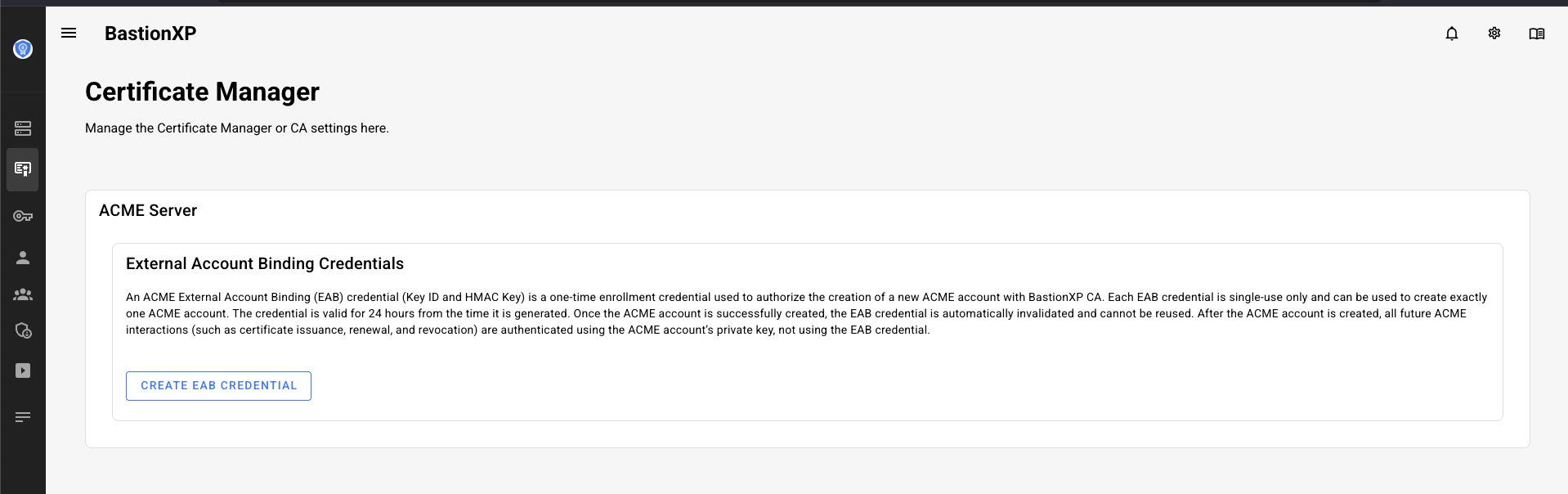
Next, go the ACME Server -> EAB Credentials section, click the "Create EAB Credential" button to generate a new single-use EAB Credentials: Key ID and HMAC Key. The HMAC Key generated is a Base64 URL Encoded String.
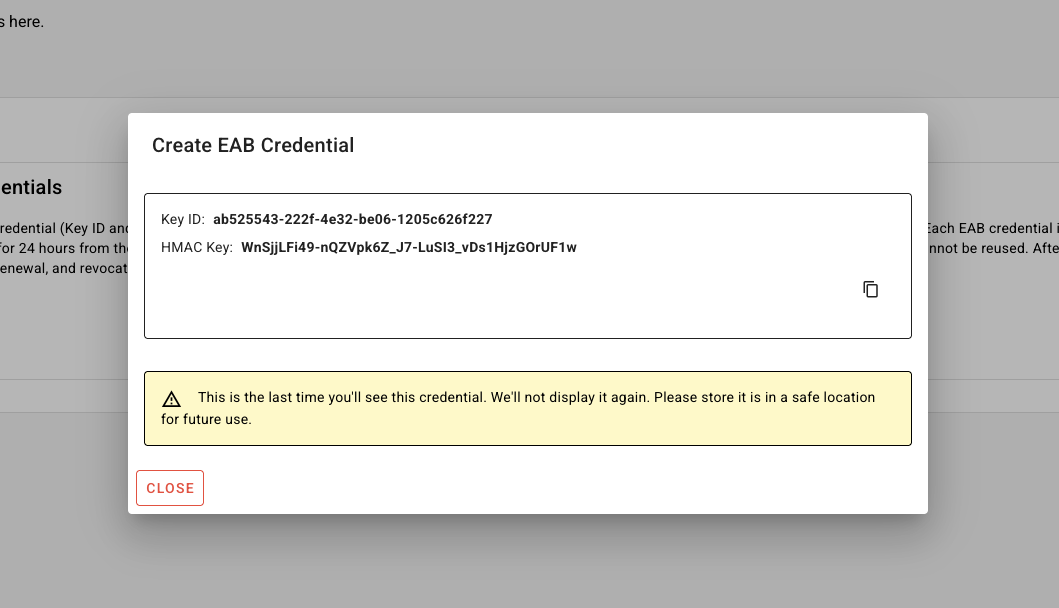
This credential will be shown only once.
This credential will be valid for 24 hours by default. Copy the credentials and consume it immediately. If you plan to use it for a future use or in a DevOps automation workflow, store in a safe location.
The EAB credentials, after the first use, will be marked as used and cannot be used again for yet another client account registration with the ACME server.
# ACME Client Example: Lego using EAB Credentials
In the example below, we use the Lego ACME client to use the EAB credentials generated by BastionXP to register an account with the BastionXP ACME server:
lego --email "[email protected]" \
--server "https://ca.internal.example.com/acme/directory" \
--eab --kid "ab525543..." --hmac "WnSjjLFi49..." \
--domains "db-001.internal.example.com" run
You can use any ACME standards compliant client (Certbot, cert-manager, Caddy server etc.,) that supports ACME EAB implementation(RFC 8555), and use the EAB credentials to register an account with the BastionXP ACME server.